Access control · RFID tags
RFID access control for gyms
RFID cards, key fobs or wristbands: the member taps their tag, Gymza checks their membership, records the visit and — with a turnstile — lets them in. Only members in good standing get through.
How a check-in works
From tag to decision in a fraction of a second.
- Member arrives at the desk or turnstile
- RFID tag card, key fob or wristband
- Reader reads the tag number
- Gymza checks membership and rules
- Entry visit recorded, door opened
Three ways to use Gymza
Start simple. Add hardware later without reinstalling or re-entering anything.
-
Software only
Run everything from one PC: members, memberships, payments, receipts and reports.
- One Windows PC at the desk
- Manual or QR-code check-in
- Ideal to get started
-
Software + RFID reader
A USB reader at the desk and tags for your members: check-in becomes automatic.
- USB reader plugged into the PC
- Cards, key fobs or wristbands
- Visits recorded by tag
-
Full access control
Controller, turnstile reader and member display: only members in good standing get in, with no front-desk involvement.
- Turnstile, gate or door
- Automatic access rules
- Member display at the entrance
The hardware
Standard equipment, available in Morocco. No proprietary models: we advise you based on your gym.
-
RFID card
Credit-card format, printable with your logo. EM4100 125 kHz or MIFARE 13.56 MHz.
-
RFID key fob
Lives on the keyring, so members forget it less often than a card.
-
RFID wristband
Handy for training without pockets, from the locker room to the floor.
-
USB reader
Plugged into the front-desk PC to enrol tags and check members in. It acts like a keyboard — nothing to install.
-
Access controller
Drives the door or turnstile. Gymza asks it to open; the controller handles the relay. Open Door Link protocol; ZKTeco C3 in preview.
-
Turnstile or gate
Tripod turnstile, swing gate or maglock door, depending on your entrance and budget.
-
Member display
A second screen that greets each member by name and photo at every visit.
-
QR member card
No budget for tags? The printed member card carries a QR code that does the same job.
Access rules you control
Each rule can be switched on, tuned, and applied to specific entrances only.
- Valid membership no entry without an active membership
- Opening hours no entry while the gym is closed
- Plan hours an off-peak plan won’t work at 7 pm
- Daily limit one entry per day if you want
- Anti-passback stops tag sharing
- Remaining sessions a used-up class pack stops working
- Unpaid balance money owed can block entry
- Medical certificate required for certain activities

Reliability
The PC never drives the motor
Gymza asks the controller to open; the controller owns the relay and its timing. A crash or a Windows update can never trap someone in the turnstile.
With a compatible controller in hybrid mode, the list of authorized tags is also kept in the controller: members in good standing keep getting in even with the PC off, and visits are synced when it restarts.
Emergency exits always stay mechanically controlled, independent of the software, as regulations require.
Member display
A personal welcome at every visit
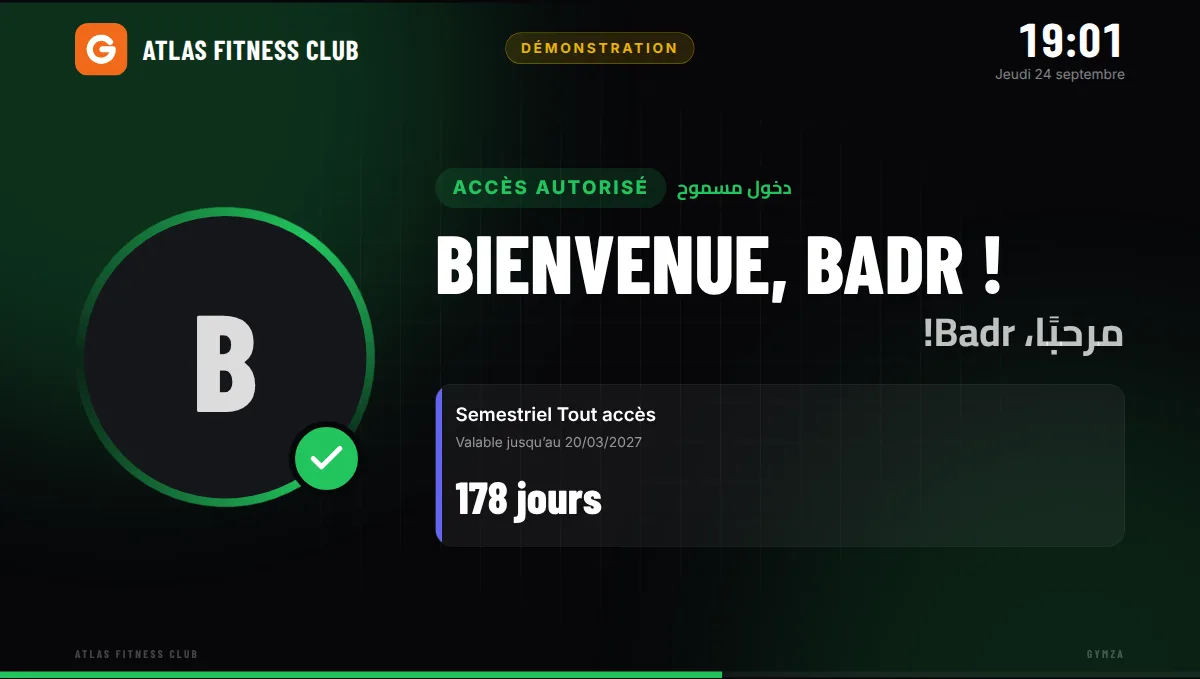
The member taps their tag and is greeted by name and photo, with their membership end date. When it’s about to expire, the screen reminds them at the best possible moment: while they’re there.
A refusal never shows the reason in public — just “please see reception”. The exact reason appears at the front desk, for your team.
Test without buying hardware
The application includes a simulator: present a virtual tag, unplug a controller, cut the power — and see how the software and the customer display respond.
Gym access control: the questions to ask
How does an RFID tag work in a gym?
Each tag holds a unique number, read contactlessly from a few centimetres. Gymza links that number to the member’s profile: at every entry the software finds the member, checks their membership and the access rules, then records the visit. Nothing to type at reception.
A reader at reception, or access control at the turnstile?
A USB reader at reception is enough to enrol tags and check members in: that is member attendance tracking, with no heavy hardware. Automatic access control adds a controller and a reader at the turnstile or door: the entrance opens only for a member in good standing, even when nobody is at reception.
EM4100 or MIFARE: which tags to choose?
EM4100 125 kHz tags are the cheapest and easiest to find in Morocco. MIFARE 13.56 MHz tags work too, as long as the turnstile reader sends the same number as the reception reader — Gymza also recognises the two common ways the same number is written. Cards, fobs and wristbands work the same: choose what suits your members.
And without a turnstile?
Checks happen at reception: the member’s profile opens when the tag is read, with their photo, status and any balance due. Without tags, the printed member card with its QR code does the same job.
Questions about access control
How does RFID tag access work?
Each member gets an RFID tag (card, key fob or wristband) linked to their profile. When they present it to the reader, Gymza checks their membership and the access rules, records the visit and, if there is a turnstile, asks the controller to open.
The front-desk USB reader works like a keyboard: no driver to install.
Which hardware is compatible?
EM4100 125 kHz tags (the most common in Morocco) and MIFARE 13.56 MHz; keyboard-style USB readers at reception; network access controllers that speak the open Door Link protocol and drive turnstiles, gates and doors; a webcam, an 80 or 58 mm receipt printer and a second screen for the customer display.
A ZKTeco C3 panel integration is available as a preview. Before buying a controller or turnstile, tell us about your project and we will tell you what is compatible.
Can I use Gymza without RFID?
Yes. All management features — members, memberships, payments, receipts, reports — work with just a PC. Check-in is then manual or uses the QR code printed on the member card.
You can add an RFID reader or a turnstile later without reinstalling anything.
What if the PC is off or breaks down?
The PC never drives the turnstile motor directly: the access controller opens it. With a compatible controller, the list of authorised tags is kept in the controller, so members in good standing keep getting in with the PC off, and the entries are retrieved when it restarts.
Either way, we recommend a UPS for both the PC and the controller.
Can you help with the hardware?
Yes. We tell you which hardware suits your entrance and budget, and we configure Gymza with it. Depending on the project, the hardware is priced in our proposal or installed by your usual installer.
How do I install Gymza?
Download the Windows installer and run it: no administrator rights are needed. On first start, a wizard asks for your gym’s name and creates the owner account. It takes a few minutes.
For a complete installation with hardware, we can install and configure the system and train your team.
Planning an access-control project?
Tell us about your gym (entrances, members, existing hardware) and we’ll propose a setup and a price.